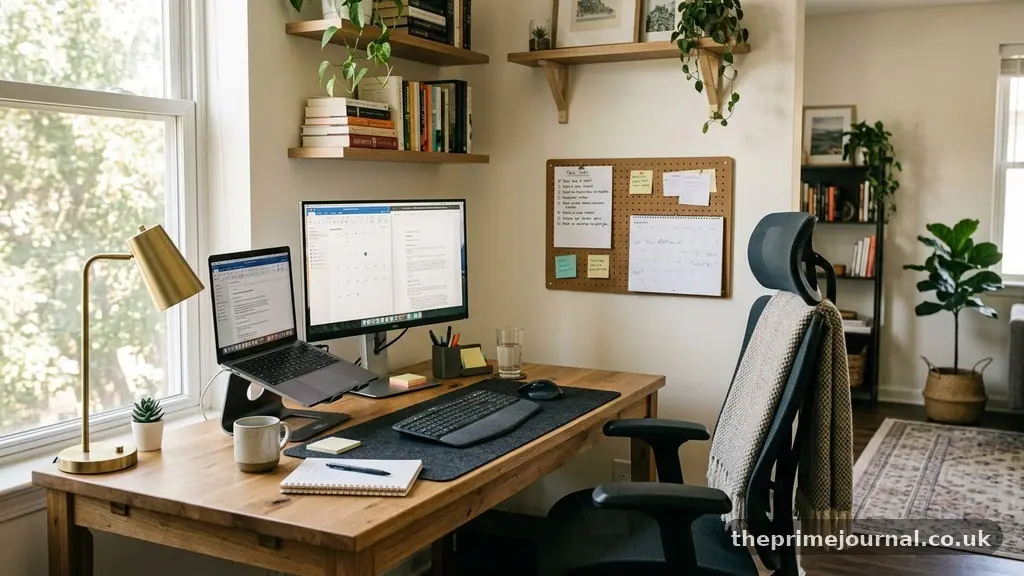
Creating a More Productive Workspace at Home starts with treating your surroundings as part of your work system, not as an afterthought. The right room, chair, lighting, layout, and daily habits can make it easier to concentrate without turning your home into a stressful office.
A productive setup doesn’t need designer furniture or a separate room. You’ll learn how to build a comfortable dedicated work zone, reduce distractions, protect your body, organize essential tools, and adjust the space as your workload changes.
Start With a Dedicated Work Zone
The most important first step is to give work a consistent physical address. A dedicated work zone might be a spare room, a corner of a bedroom, part of a dining area, or a compact desk placed against a quiet wall.
Consistency helps your brain recognise when work begins and ends. If your laptop moves from the sofa to the kitchen table each morning, your work cues change constantly, and household activity can compete with your attention.
Choose a location based on interruption risk rather than appearance. A beautiful desk beside a television may be less useful than a plain table near a wall, especially if your role involves writing, financial decisions, programming, or confidential conversations.
Match the location to your work
Video-heavy jobs need a background that can remain tidy and a position with reliable internet. Jobs involving confidential documents should be away from shared family areas, while creative work may benefit from a larger surface where sketches, notebooks, and reference materials can stay visible.
Measure the area before buying anything. Record the available width, depth, ceiling height, nearby outlets, window position, and door swing so your furniture fits without blocking movement or making the room feel cramped.
If you share your home with other people, establish a visible signal for focus time. A closed door works well, but a desk lamp, headphones, or a small sign can also communicate that you shouldn’t be interrupted except for urgent matters.
Separate work from rest
Remote workers often struggle because their desk remains mentally active long after the workday ends. At the end of your shift, close the laptop, place work materials in a drawer or home office storage unit, and turn off the task lighting.
That small closing ritual creates a boundary even when the room serves more than one purpose. If you work from a bedroom, avoid positioning the desk directly beside the bed if possible, since the visual overlap can make both rest and concentration harder.
- Use one surface primarily for work rather than mixing it with household paperwork.
- Keep the most frequently used items within easy reach.
- Place distracting objects outside your direct line of sight.
- Leave enough open floor space to stand, stretch, and move safely.
- Create a clear end-of-day routine that returns the area to a neutral state.
Build an Ergonomic Desk Setup
A productive workspace must support your body as well as your attention. An ergonomic desk setup reduces the small physical irritations that accumulate over several hours, such as raised shoulders, bent wrists, lower-back pressure, and a neck that constantly tilts toward a screen.
Begin with your chair. An adjustable office chair should let you place both feet firmly on the floor, keep your knees close to hip level, and support the natural curve of your lower back.
Don’t judge a chair only by its padding. Seat depth, back support, armrest adjustment, and the ability to change height matter more than a thick cushion that forces you to lean backward or perch at the edge.
Set desk and monitor height
Your forearms should rest roughly parallel to the floor while your shoulders remain relaxed. If the desk is too high, your shoulders may creep upward; if it is too low, you may bend over the keyboard and create tension through your neck and upper back.
Monitor height deserves special attention. Position the top of the screen at or slightly below eye level, with the display far enough away that you can read normal text without leaning forward.
A laptop stand paired with a separate keyboard and mouse often makes a larger difference than buying a new laptop. The built-in screen and keyboard are attached, so raising one without separating the other usually leaves your wrists or neck in an awkward position.
Support movement during the day
A standing desk can help you change position, but standing all day isn’t automatically healthier than sitting all day. The useful feature is adjustability: move between sitting and standing before discomfort becomes the reason to change.
Keep a footrest nearby if your feet don’t reach the floor comfortably. A rolled towel can provide temporary support, although a stable footrest is safer and more consistent for long sessions.
Position your mouse close enough that you don’t repeatedly reach across the desk. An ergonomic keyboard may help if you experience wrist strain, but no keyboard can compensate for a desk height that keeps your elbows elevated.
For practical workstation measurements and injury-prevention principles, consult the Occupational Safety and Health Administration’s computer workstation guidance. Use it as a reference, then adjust based on your body, equipment, and actual working habits.
Use Light, Air, and Sound Intentionally
Lighting affects comfort, alertness, and screen visibility. Natural lighting is often pleasant during the day, but direct sunlight on a monitor can create glare that makes you squint or increase the screen brightness unnecessarily.
Place the desk beside a window rather than directly in front of it when possible. Side lighting can brighten your face during video calls while reducing reflections across the display.
Combine natural and task lighting
Task lighting gives you control when daylight fades. A desk lamp with an adjustable arm can illuminate handwritten notes, a physical book, or a craft project without forcing the entire room to become brightly lit.
Keep the lamp on the opposite side of your dominant hand if you write on paper. Right-handed writers often place the lamp to the left to reduce shadows, while left-handed writers may prefer the opposite arrangement.
Avoid making the screen the brightest object in a dark room. When the display is surrounded by darkness, your eyes repeatedly adapt between two very different brightness levels, which can contribute to fatigue.
Reduce unpredictable noise
Noise reduction doesn’t mean creating perfect silence. It means reducing sounds that repeatedly break your attention, such as a television in another room, notification chimes, traffic, or a washing machine entering its spin cycle during a meeting.
Soft furnishings absorb sound better than bare walls and hard floors. A rug, curtain, bookcase, or upholstered chair can reduce echoes, while a door draft stopper may limit sound passing through a gap.
Noise-cancelling headphones can help with steady background noise, but they may be unsuitable if you need to hear children, alarms, visitors, or colleagues. In that case, low-volume neutral background sound or simple earplugs may be a better compromise.
Fresh air matters too. If opening a window is practical, use short ventilation periods, especially after a long meeting or a room filled with several people. Keep fans and vents positioned so they don’t blow directly into your eyes or create an irritating cold spot.
Organize the Surface and the Technology
Workspace organization should make the next action obvious. A desk covered with old notes, spare cables, receipts, and unused stationery makes every task begin with sorting rather than working.
Keep only daily essentials on the main surface: your computer, input devices, a notebook, a pen, water, and anything required for the current project. Everything else should have a defined home in a drawer, shelf, box, or cabinet.
Make cable management practical
Cable management isn’t just about appearance. Loose cords collect dust, snag on chair wheels, fall behind the desk, and make it difficult to unplug equipment quickly.
Group cables by destination and label both ends of important connections. A small label such as “monitor power” or “USB hub” saves time when you need to move equipment or troubleshoot a screen that suddenly stops working.
Use clips or a cable tray to keep cords off the floor. Avoid tightly bending power cables, overloading a single outlet, or hiding a power strip where you can’t reach it quickly.
Create zones for different tasks
Divide the desk into functional areas. The central zone can hold the keyboard and mouse, one side can hold writing materials, and a nearby shelf can store reference books or equipment used only during specific projects.
| Workspace area | Best use | Practical setup choice |
|---|---|---|
| Primary surface | Daily computer work | Keep the keyboard, mouse, monitor, and notebook here |
| Reachable side zone | Short-term tools and notes | Use a small tray or vertical file holder |
| Drawer or cabinet | Supplies and paperwork | Store less frequent items out of sight |
| Wall or shelf area | Reference material | Keep frequently consulted documents at eye or hand level |
| Floor or lower storage | Bulky equipment | Place printers and archive boxes where they don’t crowd your legs |
Digital organization also belongs in the workspace. Use a consistent folder system, clear file names, and a short list of current priorities so your physical desk isn’t tidy while your desktop contains dozens of unnamed downloads.
Control Digital Distractions
A well-designed desk can’t protect your focus if every device demands attention. Digital distractions often arrive in small bursts: a message preview, a shopping alert, a social media tab, or an email notification that takes only seconds to read but several minutes to mentally leave behind.
Start by deciding which alerts are truly urgent. Keep calls from essential contacts available, but silence promotional notifications, group chats, news updates, and nonessential email banners during concentrated work.
Choose tools that reduce friction
Productivity tools should simplify a decision, not create another system to maintain. A calendar can protect meeting time, a task manager can hold commitments, and a timer can make a large assignment feel more approachable.
Don’t run several overlapping task apps unless each has a clear purpose. If the same deadline appears in a notebook, calendar, project board, and phone reminder, you’ll spend energy checking for contradictions.
Use website blockers for tasks that require sustained attention. Blocking a distracting site for a defined period is often more effective than relying on willpower while leaving the tab one click away.
Try focused work intervals
The Pomodoro Technique uses a work interval followed by a short break, traditionally 25 minutes of focus and five minutes of rest. That timing isn’t sacred, so writers may prefer longer blocks while people handling repetitive administrative tasks may benefit from shorter ones.
Before starting a timer, write down the specific result you want. “Work on report” is vague; “draft the opening section and verify the three figures” gives the interval a finish line.
During the break, stand up, look away from the monitor, refill water, or walk briefly. Avoid replacing concentrated work with an intense social media session that leaves your mind more scattered than before.
Design a Routine That Makes the Space Work
Your workspace becomes more productive when your habits support its design. A spotless office won’t help much if every morning begins with an unplanned inbox review and every afternoon disappears into loosely defined tasks.
Set a start-up sequence that takes only a few minutes. Open the calendar, identify the day’s most important outcome, gather the required files, and close unrelated applications before beginning.
Plan around energy and obligations
Place demanding work during the hours when your concentration is strongest. If you write clearly in the morning, protect that period from routine administration and move email processing to a lower-energy part of the day.
Leave space between video meetings when possible. Even a short buffer lets you record decisions, stand up, refill water, and prepare for the next conversation rather than carrying the previous meeting’s urgency forward.
Use a visible daily limit for meetings or deep-work blocks. The exact number depends on your job, but the principle is simple: a calendar filled edge to edge leaves no room for thinking, recovery, or unexpected tasks.
Use breaks as part of the system
Breaks are not a reward for finishing everything. They help prevent stiffness, visual fatigue, and the gradual decline in attention that makes a simple task take twice as long.
Keep movement easy to start. A clear patch of floor, a resistance band near the desk, or a water bottle placed across the room can prompt activity without requiring a separate fitness plan.
At the end of work, write a brief handoff note for tomorrow. Record the next action, any unresolved question, and the file you need to open first, then shut down the work area with confidence.
Spend Money Where It Solves a Real Problem
A productive home workspace doesn’t require buying every popular office accessory. Spend first on the problem you can identify clearly: an uncomfortable chair, poor monitor height, inadequate storage, glare, unreliable internet, or a desk that is too small for your equipment.
Improve the existing setup before replacing it. A monitor riser, separate keyboard, task lamp, footrest, or cable tray may solve a specific issue at a fraction of the cost of replacing the entire desk.
Prioritize purchases
Health and fit usually come before decoration. If your chair causes pain or your screen forces your neck downward, artwork and matching containers won’t address the main obstacle.
- First priority: a stable desk, supportive chair, and correct screen position.
- Second priority: adequate lighting, comfortable input devices, and dependable power access.
- Third priority: storage, cable management, and tools that reduce repeated effort.
- Final layer: plants, artwork, colour, and other choices that make the space feel inviting.
Test furniture before making a large purchase whenever possible. Sit at the desk for several minutes, check whether your knees fit comfortably underneath, and confirm that the chair can move without striking a wall or cabinet.
Make a small room feel larger
Vertical home office storage is useful when floor space is limited. Shelves, wall-mounted file holders, and a narrow cabinet can hold supplies without taking the legroom needed for an ergonomic position.
Choose furniture with more than one function if the area serves family life after work. A desk with closed storage can disappear visually when the doors are shut, while a folding surface can return a shared room to its original purpose.
Keep decorative items intentional. One plant, a framed print, or a meaningful object can add warmth without crowding the work surface or becoming another thing to dust and move.
Review the Workspace After Real Use
The first arrangement is a starting point, not a permanent verdict. A setup that looks correct in a photograph may reveal problems after three video calls, a long spreadsheet session, or an afternoon of writing.
For one week, note when you lose focus and what happens immediately beforehand. You may discover that glare appears after midday, the printer interrupts concentration, the chair lacks support, or a frequently used reference book is stored too far away.
Use a simple adjustment cycle
Change one variable at a time. Raise the monitor, test the position for several days, and then decide whether the neck discomfort improved before changing the chair, keyboard, and desk simultaneously.
Measure outcomes that matter to your work. Useful signs include completing a planned focus block, taking fewer unplanned phone checks, finishing meetings with less fatigue, or ending the day without leaving essential tasks scattered across several locations.
Ask another person to look at your posture during a normal work session. People often sit differently when demonstrating their setup, so an honest observation during real work can reveal a tilted screen, raised shoulders, or a chair positioned too far from the desk.
Refresh the space regularly
Review the desk at the end of each week. Remove outdated notes, return tools to storage, delete temporary downloads, and check whether the current layout still reflects the work you actually do.
Seasonal changes may require small adjustments. Winter darkness can make task lighting more important, summer glare may require a blind or screen repositioning, and a change in work responsibilities may call for additional storage or a second monitor.
Frequently Asked Questions
What is the best place for a home workspace?
The best location is a consistent area with manageable noise, reliable internet, sufficient light, and enough room to sit comfortably. A separate room is helpful, but a well-planned corner can work just as effectively if it has clear boundaries and limited interruptions.
How high should a monitor be?
Set the monitor so the top edge is at or slightly below eye level, then adjust the distance until you can read without leaning toward the screen. Your preferred position may vary with glasses, screen size, and text scaling, so comfort matters more than a rigid measurement.
Is a standing desk better than a regular desk?
A standing desk is useful because it makes changing position easier, not because standing continuously is automatically superior. Alternate between sitting and standing, keep the keyboard at a comfortable height, and avoid locking your knees or leaning against the desk.
How can I stay focused in a shared home?
Use a visible focus signal, agree on interruption rules, silence nonessential alerts, and schedule demanding work during the quietest available periods. Headphones, a room divider, or a temporary work zone can help, but communication with the people you live with remains essential.
What should I buy first on a limited budget?
Address discomfort and positioning before decoration. A supportive chair adjustment, laptop stand, separate keyboard, task lamp, or simple cable solution may provide more value than a costly desk accessory or complete furniture replacement.
Make the Space Easier to Return To
Creating a More Productive Workspace at Home is less about copying a polished office and more about removing the specific obstacles that interrupt your work. Start with a dedicated zone, correct the chair and monitor height, improve light and sound, then organize the tools you reach for every day.
Give the arrangement a week of real use before judging it, and make small changes based on evidence rather than appearance. A comfortable desk, a clear routine, and a reliable closing ritual can turn even a modest corner into a place where focused work feels more natural.